
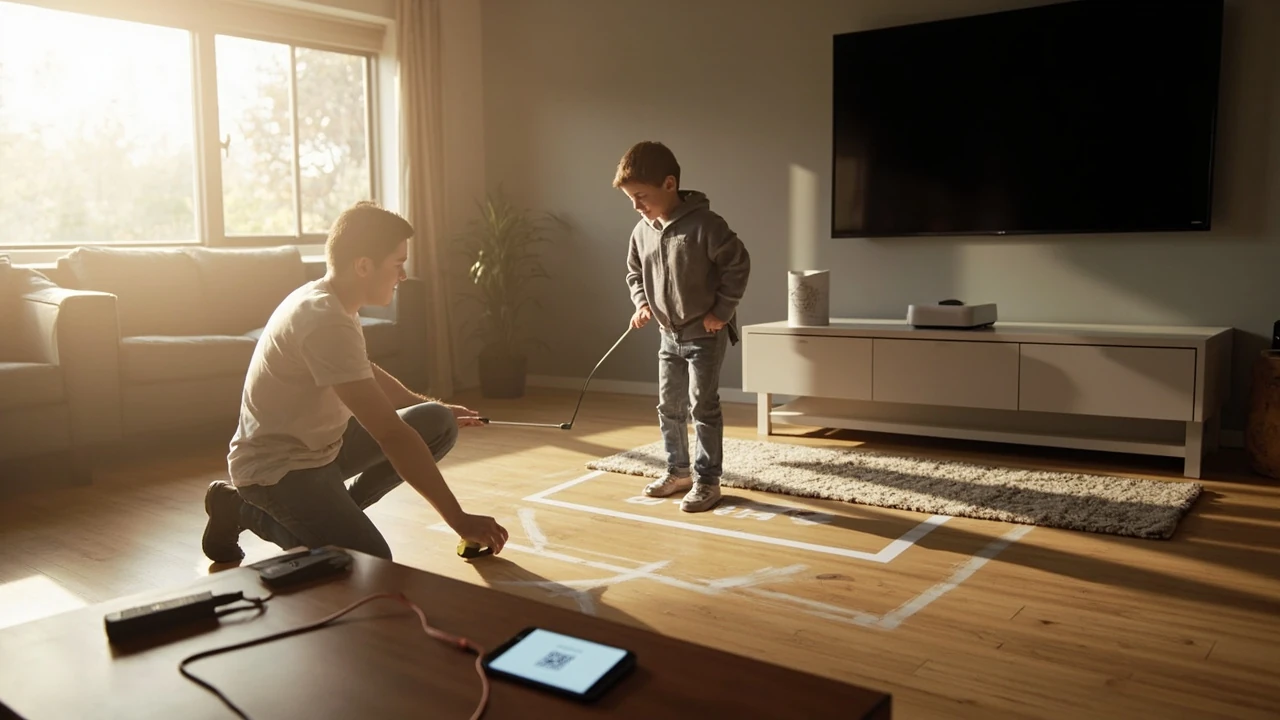
Nex playground setup: room, controls, and first play
Unboxing the Nex playground is the easy part. The first thirty minutes are where most households lose time, usually because the console ends up in the wrong spot, the Wi-Fi drops during activation, or the play area is still half-blocked when the first game loads. The steps below are the ones that actually change how the console behaves: physical placement, the activation flow, the optional Play Pass decision, and tuning the room so the camera tracks reliably from session one.
The setup breaks into four phases that build on each other. Going in order avoids most of the drift and “why does the avatar keep floating to the side” complaints that show up on day two.
What the Nex playground actually is
The Nex playground is a small camera-based console that plugs into a TV over HDMI and uses a built-in camera to track body movement instead of a handheld controller. The box includes the console, an HDMI cable, a power cord, a remote, and a starter bundle of five free games. The rest of the library runs on a subscription called Play Pass.
Two design choices shape the whole setup. The console is meant to live permanently under the TV, because the camera needs an unobstructed head-on view of the player. And because there is no controller in hand, the room around the console matters as much as the picture on the screen.
What to have ready before plugging anything in
Most delays come from one of three things: a weak Wi-Fi signal at the TV, a phone that cannot scan a QR code, or an email address that has already been used on another Playground console. Sorting these out before the box is open keeps the activation screen from stalling mid-flow.
A short checklist before the cables go in:
- A TV with a free HDMI port and a power outlet within reach of the media stand.
- A 2.4 GHz or 5 GHz Wi-Fi network with a strong signal at the TV, not just at the router.
- A smartphone with a working default camera app for scanning the activation QR code.
- A household email address that will be the permanent account for this console.
- About 2 to 3 hours of buffer time if Play Pass is being purchased, so the full library can finish downloading before the first real session.
- A cleared floor area around 6 by 6 feet, free of furniture, rugs that slide, and breakables.
The 2 to 3 hour download window is the step most households underestimate. The five free games appear quickly after activation, but the full Play Pass library is a much larger download, and it cannot start until the console is linked to an account.
Physical placement: where the console actually works
Placement is the single most important physical decision, and the one most households get wrong on the first try. The console needs a clear, head-on view of the player, with no glare, no strong backlight, and nothing between the camera and the play area.
The official guidance from Nex is to place the console directly under the TV, centered, and pushed to the very front edge of the surface it sits on. Centering keeps the camera angle symmetrical, and the front-edge position widens the field of view so the camera still sees players who step to the side during motion games.
Two lighting situations reliably break tracking and are worth ruling out before the first game loads:
- Strong backlighting from an uncovered window directly behind the play area, which silhouettes the player.
- Bright overhead lights positioned right above the console, which wash out the image the camera is reading.
A well-lit room with soft, even light is the goal. If the play zone is near a window, close the blind on game nights, or shift the play area so the window is to the side rather than behind the player.
Step-by-step: first boot and activation
Once the HDMI and power cables are connected, the on-screen flow takes over. The order below mirrors the official setup steps so there is no guessing about what to tap next.
- Power on the TV, switch to the correct HDMI input, and choose a preferred language for the console.
- Connect to Wi-Fi by selecting the network, entering the password, and confirming the signal is strong enough for game downloads and updates.
- Scan the on-screen QR code with the phone’s default camera app to start activation.
- Enter or confirm the email address that will be permanently linked to this console. Only one email can be associated with each unit.
- Check the inbox for a temporary login code, enter it on the activation screen, and finish verification.
- After verification, choose whether to start a Play Pass subscription, redeem an existing code, or continue with the five included free games.
If the QR scan does nothing, the usual culprit is a third-party scanner app blocking the link. Switching to the default camera app, or long-pressing the on-screen link from the preview, clears most cases.
Play Pass: what the subscription actually changes
Play Pass is the tier that unlocks the full game catalog, including new releases, updates, and seasonal events. It is not required to use the console, but it is the difference between the five included games and the entire library.
Play Pass can be picked up in two ways:
- Directly from Nex during setup or later from the console, with a 3-month or 12-month renewing option.
- As a code bought from a retailer, then redeemed on the device after activation. Codes from retailers are non-refundable.
Two subscription details matter on the first day. The Play Pass term only starts when a code is actually entered on the device, so a code bought early does not burn days while the console sits in the box. And first-time direct Play Pass purchases from Nex come with a 7-day risk-free window. If it does not fit the household, customer service can be contacted within 7 days of activation to request a refund.
For households still on the fence, the practical move is to start with the included free games, test the room setup for a few sessions, and only buy Play Pass once tracking, lighting, and the play area are dialed in. Adding Play Pass later does not require re-activation.
Preparing the play space for motion tracking
Motion games do not need much equipment, but they do need room. The recommended minimum is 6 by 6 feet of clear floor, with no furniture, no coffee table edge, and no loose rugs. Many of the games involve kicking, punching, jumping, and quick lateral shifts, and a tight zone is the most common cause of bumped shins and missed inputs.
Useful tuning for the play space:
- Use painter’s tape on the floor to mark a starting position, which helps younger players stay in frame.
- Push side furniture outward so the rectangular zone is genuinely rectangular, not a curved sliver between a sofa and a wall.
- Cover or angle any mirrors in the play area, because reflections can introduce “extra players” into the camera frame and confuse tracking.
- Keep only active players visible to the camera during a session. Spectators should stand outside the play zone.
- Pick clothing that contrasts with the wall and floor. High-contrast outfits track more reliably than outfits that blend into the room.
For very young children who struggle to hold position, turning on Mirrorama in settings is a useful fallback. It mirrors the player’s movements, which keeps small kids in frame without asking them to hold a fixed stance.
Camera tracking and latency: the two real performance issues
Almost every “the game feels off” complaint traces back to one of two causes: the camera is losing the player, or the TV is adding input lag on top of the camera’s own delay. Both are fixable without new hardware.
The table below summarizes the most common symptoms, the likely cause, and the first fix to try for each.
| Symptom during play | Likely cause | First fix to try |
|---|---|---|
| Avatar drifts away from the player or freezes | Player is at the edge of the camera’s field of view | Step back toward the center of the taped play zone, or move the console to the front edge of the surface |
| Game feels laggy even though Wi-Fi is strong | TV is in a high-latency picture mode | Enable Game Mode on the TV to cut display input lag |
| Player keeps “popping” out of the frame | Strong backlight or overhead glare on the camera | Close blinds behind the player, or move bright overhead lights out of the camera’s line of sight |
| Game shows an extra player that is not there | Mirror or reflective surface in frame | Cover the mirror, or rotate the play area so the reflection is out of view |
| Tracking fails only for one family member | Clothing color matches the wall or floor | Switch to a contrasting top before the next session |
| New games do not appear in the library | Console is on an older system version | Open Settings, go to System, then Updates, and confirm the latest version is installed |
Console and TV settings that affect gameplay
Two settings do most of the heavy lifting once the room is set: Game Mode on the TV and the system version on the console. Most modern TVs ship with Game Mode turned off, and a motion-controlled console is one of the few devices where the difference is immediately visible. If the TV remote has a picture-mode button, switching to Game Mode is usually a one-tap change.
On the console side, missing games in the library almost always come down to an older system version rather than a Play Pass issue. Heading to Settings, then System, then Updates and confirming the latest build is installed pulls in new releases, patches, and seasonal events that the library will otherwise skip over.
For households that want a single reference for the full official flow, the Nex playground setup walkthrough on the Nex site covers the same steps in a slightly different order, with extra detail on activation troubleshooting and Play Pass timing.
Controls: the included remote, a TV remote, or the mobile app
The Playground ships with its own remote, but it is not the only way to control the console, which matters in a household with kids, because the included remote is the single most lost item in the box.
Three control options are available:
- The included Playground remote, which pairs during setup and acts as the primary controller for menus and game selection.
- A TV or universal remote that has been programmed to control the console, useful as a backup once the original remote disappears.
- The official Android and iOS mobile app, which mirrors the remote’s functions from a personal device and is handy when the physical remote is between couch cushions.
If the original remote eventually goes missing for good, a replacement can be ordered from the official online store. In the meantime, the mobile app is the fastest way to keep playing without waiting for shipping.
Family controls: hiding games, songs, and adding a security pattern
Not every game in the catalog is aimed at the same age group, and not every song in the music games will suit every household. The console ships with a Family Tools section that handles both, without needing a separate parental-control app.
Inside Settings, Family Tools lets caregivers hide individual games from the home screen, hide specific songs inside the music game Starri, and add a Security Pattern that has to be entered before hidden content can be re-shown. It is the cleanest way to keep the catalog kid-friendly without deleting anything or losing purchased content.
A useful pattern is to do a one-time pass through the library the first evening, hide anything that does not fit, and then leave Family Tools alone. Re-showing content is fast, so a hidden game is not a deleted game.
What to do when a game gets stuck
Motion games occasionally freeze on a loading screen or refuse to return to the home menu. Before assuming the console is broken, the Fix Stuck Games option in settings is the standard recovery path. It closes the active experience, similar to swiping an app closed on a phone, without deleting save progress or purchased content.
Fix Stuck Games is the right first step because it is non-destructive. If the issue returns on the same game after a reset, the next step is to confirm the console is on the latest system version through Settings, then System, then Updates. Game-specific bugs are usually patched through system updates rather than per-game updates, so a current system version resolves most recurring issues.
If the problem still does not clear, the Nex Playground Support site has step-by-step articles, community threads, and a direct line to the customer support team. Contacting support is more useful than factory-resetting the console, because a reset does not recover the email account link and is rarely the right answer on day one.
Wi-Fi and offline play
The console only needs Wi-Fi during setup, system updates, and the initial game downloads. Once the games are installed, the console can run without an active internet connection for normal play. Periodic reconnects are still required to pull new game releases, patches, and seasonal events.
For households that travel with the console, this means a setup session at home, followed by offline play at a vacation house or a relative’s place, as long as the new TV has a free HDMI port and the play area is clear. The console will not automatically switch to a new Wi-Fi network mid-session, so the network change is a deliberate step in Settings.
A simple first-day routine
The fastest way to know whether the setup is correct is to play one short, full-motion game end to end and watch for drift, lag, or tracking drops. If those three do not show up in the first session, the rest of the library will behave the same way. If they do show up, the fixes above cover the most common causes.
A reliable first-day routine looks like this:
- Place the console centered and at the front edge of the TV stand, with the play area cleared and taped.
- Boot the console, run activation, and decide on Play Pass before the first game loads.
- Enable Game Mode on the TV and confirm the console is on the latest system version.
- Play one short motion game, then check whether the avatar tracks the player across the full 6 by 6 foot zone.
- Open Family Tools, hide anything that does not fit the household, and set a Security Pattern.
Once those five steps are clean, the console is genuinely ready for the family to use without supervision, and the rest of the catalog can be explored at whatever pace suits the household.
What to add after the included five games
The five free games are enough to test the setup, but most households will want a few more within the first week. The highest-value additions are usually the active music games, since those benefit the most from a well-tuned play area, and one of the sports or fitness games, which makes the camera’s tracking quality very obvious. If the room setup holds up across those two genres, the rest of the library behaves the same way.
For households comparing the Nex playground with other motion-play systems, the practical differences are the camera-only approach, the lack of a handheld controller, and the subscription-based library. There is no accessory ecosystem to buy into, but there is also no offline library of purchased games to fall back on if Play Pass is canceled.
Nex playground quick reference
The table below condenses the setup decisions, the timing involved, and the most common first-day pitfalls into a single reference.
| Setup step | What to do | Time or requirement | Common pitfall |
|---|---|---|---|
| Place the console | Centered under the TV, at the front edge of the surface | A few minutes | Console pushed back behind decor, cutting the camera’s field of view |
| Connect to Wi-Fi | Select the network, enter the password, confirm signal | 2 to 5 minutes | Weak signal at the TV despite a strong router, causing failed downloads |
| Activate the console | Scan the QR code, enter a new email, verify the login code | 5 to 10 minutes | Reusing an email already linked to another console |
| Decide on Play Pass | Buy direct, redeem a retailer code, or skip for now | 2 to 3 hours for the full library to download | Underestimating the download time and running out of patience |
| Prepare the play area | Clear 6 by 6 feet, tape a starting position, fix lighting | 10 to 15 minutes | Strong backlight from a window behind the player |
| Enable Game Mode on the TV | Switch the TV picture mode to Game Mode | One tap on most remotes | Leaving the TV in a high-latency movie preset |
| Update the system | Settings, then System, then Updates | 5 to 15 minutes | Skipping the update and missing new games in the library |
| Set up Family Tools | Hide unwanted games and songs, set a Security Pattern | 5 to 10 minutes | Forgetting the Security Pattern later when re-showing content |
Frequently asked questions
How long does it take to set up the Nex playground from unboxing to first play?
Physical setup, language selection, Wi-Fi connection, and email activation usually take 15 to 30 minutes if the signal is strong at the TV. If Play Pass is also being purchased, the full library download can run 2 to 3 hours, so most households start the download in the afternoon and play the included free games the same evening.
Do I need Wi-Fi every time I want to play?
No. Once games are downloaded, the console can run without an active internet connection. Wi-Fi is still needed periodically to pull system updates, new game releases, and seasonal events. Without those reconnects, the library will slowly fall behind the current catalog.
What size room does the Nex playground need?
The recommended minimum play area is 6 by 6 feet of clear floor, with no furniture, rugs that slide, or breakables inside the zone. Smaller spaces work for seated or short sessions, but the full motion library is designed around that 6 by 6 foot rectangle.
Can I use the Nex playground without buying Play Pass?
Yes. The console includes five free games that are available right after activation. Play Pass unlocks the rest of the library, new releases, updates, and seasonal events, but it is not required to use the device.
Is the Play Pass refund window real, and how does it work?
For first-time direct purchases from Nex, there is a 7-day risk-free window after activation. Contacting customer service within 7 days is enough to request a refund. Play Pass codes bought from retailers are non-refundable, so the refund window only applies to direct Nex purchases.
Why does the avatar drift away from the player during a game?
Drift usually means the player has moved to the edge of the camera’s field of view. Stepping back toward the center of the taped play zone, or moving the console to the front edge of the TV stand, is the fastest fix. Drift can also come from strong backlighting, which silhouettes the player and confuses the camera.
What is Game Mode on the TV, and why does it matter for the Nex playground?
Game Mode is a TV picture setting that reduces display input lag by skipping some of the image processing that is useful for movies but harmful for interactive play. For a motion-controlled console, the lower lag makes movements feel more responsive, and it is the single most impactful TV-side change.
Can I hide specific games or songs from my kids?
Yes. The Family Tools section in Settings lets caregivers hide individual games from the home screen and hide specific songs inside Starri. A Security Pattern can also be added so hidden content cannot be re-shown without entering it first.
What should I do if a game gets stuck and will not return to the home menu?
Open Settings and use the Fix Stuck Games option. It closes the active experience without deleting save progress or purchased content, similar to swiping an app closed on a phone. If the same game gets stuck repeatedly, confirm the console is on the latest system version through Settings, then System, then Updates.
What happens if I lose the included remote?
The console can be controlled with a programmed TV or universal remote, or with the official Android and iOS mobile app. A replacement remote can also be ordered from the official online store. Game progress and the account link are stored on the console, so a lost remote does not mean lost data.
Leave a Reply